
Connecting the Printer
To begin setting up the Toro Max to the PC a USB printing cable (USB-A to USB-B) will be needed as well as a copy of the latest driver which can be found here: DuraLabel Max Drivers
- Begin by plugging the powered Toro Max directly into an open USB port on the PC. It is recommended to plug directly into the PC as opposed to a USB hub or docking station if available.
- Run the DuraLabel Max Drivers file. This process will likely require local admin assistance if presented with a window that asks for log in credentials.
- Select the appropriate driver to install. By default the installer will have every driver checked.
- Continue to follow the rest of the installation. Once done with installation, the program will require a restart of the PC to complete the process.
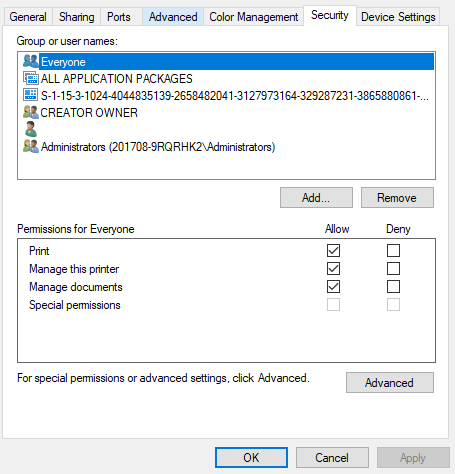
- After the PC has been restarted the security permissions within the driver via the "Printer Properties" menu will need to be adjusted and set to allow for each group or username.
- Click Start on the windows taskbar or click into the search bar and type Control Panel.
- Click View Devices And Printers.
- Right-Click on the appropriate printer and select Printer Properties.
- Click on the Security tab in the new window that has appeared.
- Make sure that the allow boxes are all checked for each of the Group or User names.
- Click Apply.
- The driver should now be installed and allow the printer to properly communicate with the PC. If there are any issues after contact Tech Support or your Account Manager for further instructions.
PC Driver Settings
After initial setup, your Toro Max will appear in the list of available printers on your computer. Be sure to select the appropriate printer when you want to print labels or other documents. You can choose some of the settings for your Toro Max through Printing Preferences.
When accessing the Printing Preferences by right clicking on the driver and selecting "Printing Preferences," the orientation setting (landscape/portrait) will be the only option immediately available. Additional options for unusual needs, or for troubleshooting, can be reached by clicking the Advanced... button: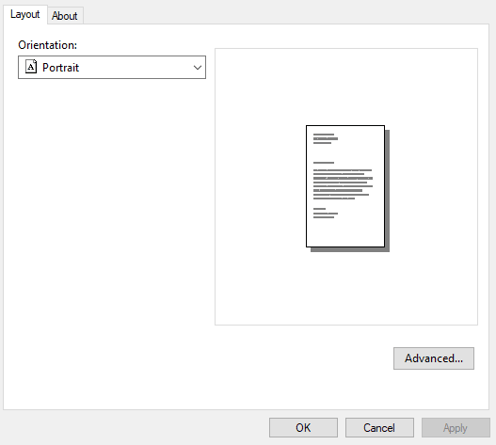
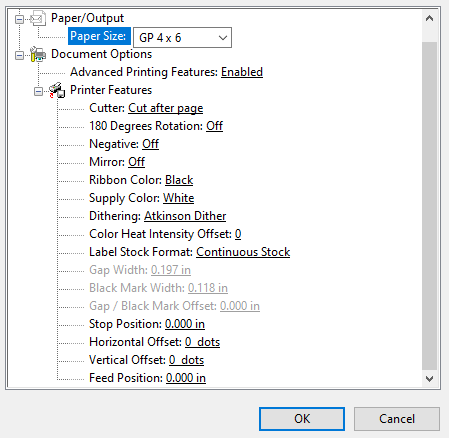
- Paper Size: Pick from a variety of page sizes when printing from programs outside of LabelForge Pro.
- Cutter: Cut after each label printed, after a complete job, or not at all.
- 180 Degrees Rotation: Choose whether your Toro Max rotates all print jobs by 180 degrees for troubleshooting.
- Negative: Invert the colors of the design, from printed (ribbon color) to not-printed (label stock color) and vice versa.
- Mirror: Flip the design backward, as if viewed in a mirror.
- Ribbon Color and Supply Color: Manually select different material colors for software previews; the actual printed results will not be changed.
- Dithering: Choose how Toro Max uses patterns of dots to approximate shades of darkness.
- Heat Intensity Offsets: For troubleshooting, adjust the heat used in the printing process.
- Label Stock Format (and following options): Manually select the type of label stock: Continuous Stock, Stock With Gaps (die-cut supply), Stock With Marks (black-mark supply) or Notched Stock (supply with 0val shaped notches within the gaps).
The remaining options may be useful for troubleshooting, but should ordinarily be left at their default values.
Updating PC Drivers
- Begin by downloading the most up to date version of the driver which can be found at the top of this page or here.
- Unplug the printer from the PC.
- Run the uninstaller for the DuraLabel Max Drivers located in the following path: C:\Program Files (x86)\DuraLabel Max Drivers
- The file name to look for is unins000.exe
- If the driver is before version 3.0.4 the uninstall will be located in the following path: C:\Program Files (x86)\DuraLabel ToroMax
- Restart the PC when the uninstaller is completed.
- Run the DuraLabel Max Drivers file. This process will likely require local admin assistance if presented with a window that asks for log in credentials.
- Click Start on the windows taskbar or click into the search bar and type Print Management. To access this area local admin may be needed.
- Click All Drivers along the left and make sure that you do not see any Toro Max drivers listed.
- If any are present, right click and select delete.
- Click Start on the windows taskbar or click into the search bar and type Control Panel and then click on view devices and printers to make sure that there are no instances of the DuraLabel Toro Max showing. If there are right click and Remove Device.
- To reinstall the driver follow the instructions at the top of the page. If there are any issues during contact Tech Support or your Account Manager for further instructions.
More Support Options
If you have any questions about using your DuraLabel Toro Max printer, get help from our world-class DuraLabel support team by calling 800-788-5572 or visiting DuraLabel.com. We're here to help with all your labeling needs!