
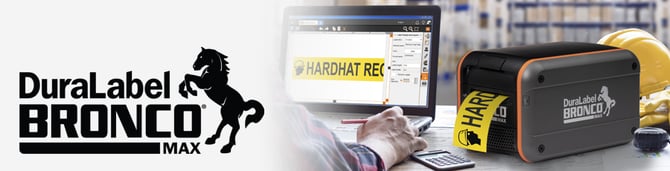
Bronco Max is a thermal transfer printer, meaning that it uses heat to transfer a solid resin, or "ink", from a printing ribbon onto a label stock. Bronco Max uses a ribbon cartridge system to make loading supplies fast and easy, and the system will recognize which supplies are loaded to simplify your printing tasks.
Bronco Max is designed to be connected to a computer directly with a USB cable, or over a wired (Ethernet) network. Its included label design software can be used to create the signs and labels that you need. You can also use other software for label design, from specialized electrical analysis software to common office productivity programs.
In the Box
In Bronco Max's box, you will find the following materials
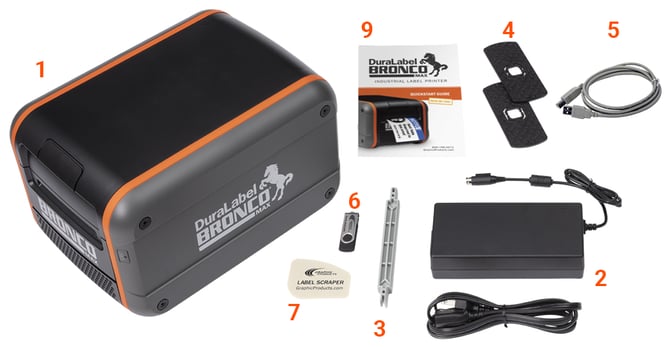
- Bronco Max Printer
- Power Cord and AC Adapter ("brick")
- Notched Supply Spindle
- Fixing Tabs
- USB Cable
- USB Flash Drive with PC Software
- Label Scraper
- Cleaning Swabs (Not Shown)
- Bronco Max User Guide
Your Bronco Max
OUTSIDE VIEW
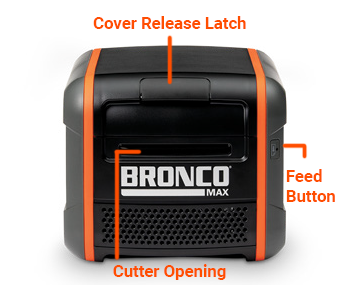
- Cover Release Latch: Lift to release the printer's lid.
- Feed Button: Press and hold this button to feed supply through the printer.
- Cutter Opening: Printed labels will feed out from this slot. The cutter blade is sharp; do not insert any objects here.
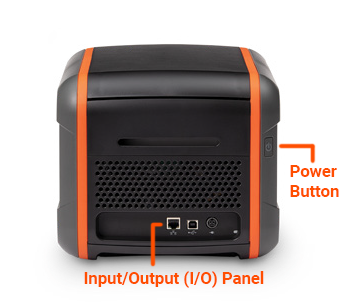
- Power Button: Press this button to power the printer on or off.
- Input/Output (I/O) Panel: Plug in power and other cables here, along with any USB devices.
INSIDE VIEW
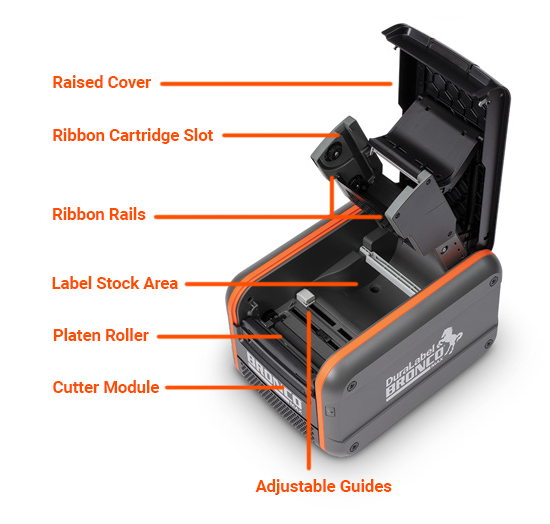
- Raised Cover
- Ribbon Cartridge Slot
- Ribbon Rails
- Label Stock Area
- Platen Roller
- Cutter Module
- Adjustable Guides
Input/Output (I/O) Panel
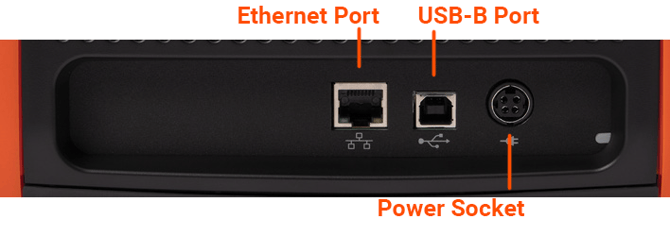
- Ethernet Port: Connect Bronco Max to a wired network.
- USB-B Port: Connect Bronco Max to a PC, allowing that PC to send print jobs.
- Power Socket: Connect the power supply here, using the included AC Adapter (model WDS5150240). This six-pin connector uses a slider to latch into place, preventing accidental disconnects.
Important! To unplug the connector, grasp the power plug release slider and pull it away from the printer.
More Support Options
If you have any questions about using your DuraLabel Bronco Max printer, get help from our world-class DuraLabel support team by calling 800-788-5572 or visiting DuraLabel.com. We're here to help with all your labeling needs!