

Download: LabelForge PRO Release Notes v3.2
Option 1: Updating LabelForge PRO on Your PC via Desktop Application
Step 1: Ensure Internet Connection 0:09
-
Connect to the internet via Wi-Fi or Ethernet.
-
Verify connection by checking network settings.
Step 2: Access Notification Icon 0:21
-
Go to the homepage of LabelForge PRO.
-
Click on the notification icon located at the top right corner.
Step 3: Install Update 0:27
-
Click on 'Install Update' when prompted for LabelForge PRO version 3.2.
-
Confirm installation when the prompt screen appears.
Step 4: Restart Computer 0:32
-
Allow your computer to restart automatically after the installation is complete.
Step 5: Open LabelForge PRO 0:44
-
After restarting, open the LabelForge PRO program.
Step 6: Familiarize with New Features 0:51
-
Note the updated clean and modern look of the home screen.
-
Explore new features and updates available in version 3.2.
Step 7: Access Knowledge Base 1:09
-
Visit kb.duralabel.com for step-by-step tutorials and how-to videos.
Step 8: Contact Support if Needed 1:13
-
Reach out to the support team for assistance with installation or updates.
Option 2: Update Over Wi-Fi or Ethernet on Your DuraLabel Print System
If you have a DuraLabel Toro Max or Kodiak Max Print System, you can update directly from the printer using Wi-Fi or Ethernet Network Connection.
Step 1: Ensure Wi-Fi or Ethernet Connection 1:25
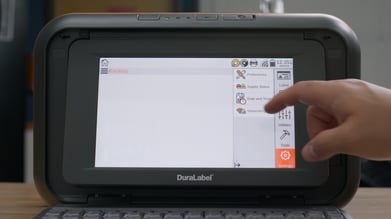
- Click on "Settings" on LabelForge PRO homepage.
- Select "Networking" tab under "Settings"
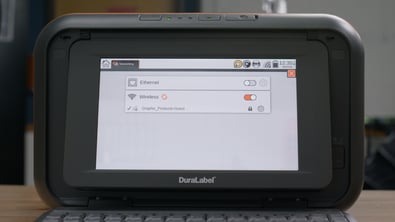
- Select your Wi-Fi network or connect an Ethernet connection
Step 2: Navigate to Updater 1:46
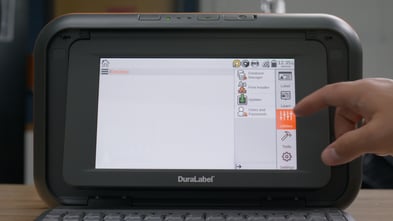
- Select "Utilities" from LabelForge PRO homepage.
- Select "Updater" in "Utilities" sub-menu.
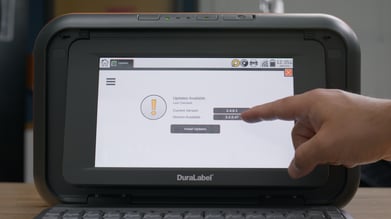
- Make sure to check that you have the new version of LabelForge PRO available for install.
- Select "Install Updates."
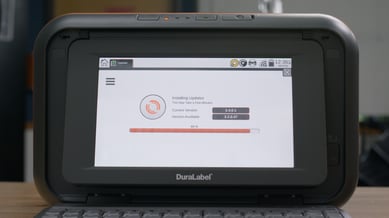
Step 3: Restart your DuraLabel Print System 2:06
- Restart DuraLabel Print System after update is finished. Press "Power Button" (on Toro Max) or "Flip Power Switch" (on the back of Kodiak Max).
- Power back on system.
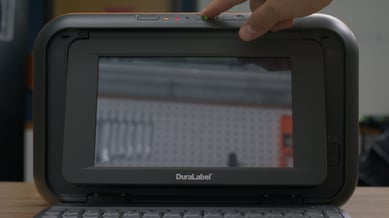
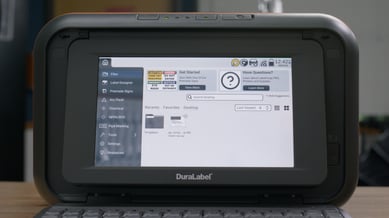
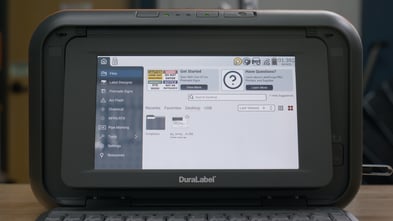
Step 4: New Version of LabelForge PRO and Homepage Available 2:20
Option 3: Offline Update vis USB Drive
If your printer isn’t connected to the internet, you can update LabelForge PRO using a USB drive.
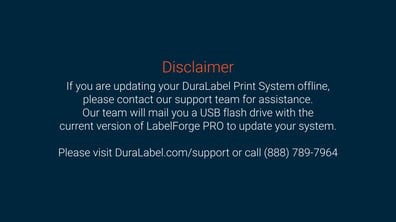
⚠ Important:
To update your DuraLabel Print System offline with the latest version of LabelForge PRO, you'll need a specially formatted USB drive. Please contact the DuraLabel Support team.
-
Call: 888-411-3520
-
Online: DuraLabel Support Portal
Step 1: Power on DuraLabel Print System 2:36
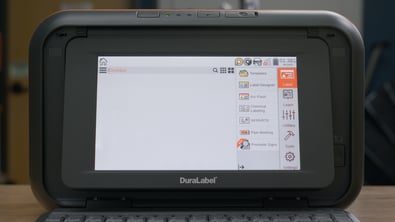
- Power on DuraLabel Print System. Press "Power Button" (on Toro Max) or "Flip Power Switch" (on the back of Kodiak Max).
Step 2: Insert USB Flash Drive into Back USB A Port 2:41
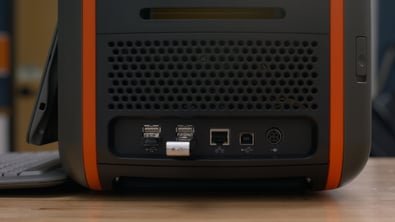
- After receiving your USB Flash drive from the DuraLabel Support Team, please insert flash drive into one of the USB Type A port in the back of the print system (Toro Max) or front of print system (Kodiak Max)
Step 3: Navigate to Updater and Install new version of LabelForge PRO from USB Flash Drive 2:51
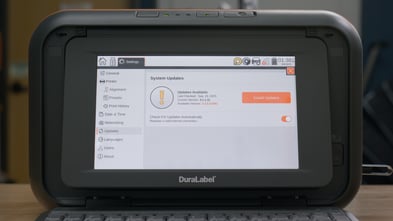
- Select "Utilities" from LabelForge PRO homepage.
- Select "Updater" in "Utilities" sub-menu.
- Make sure to check that you have the new version of LabelForge PRO available for install.
- Select "Install Updates."
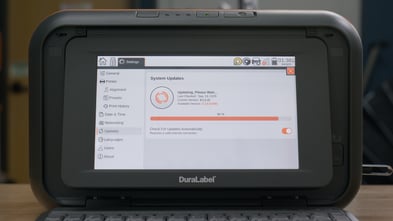
- Wait for installation to achieve 100% complete. Do not turn off your print system yet.
Step 4: Restart your DuraLabel Print System 3:10
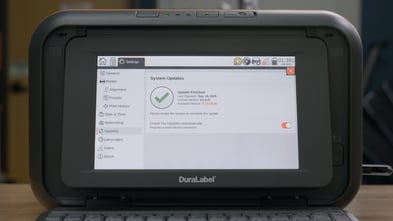
- Restart DuraLabel Print System after update is finished. Press "Power Button" (on Toro Max) or "Flip Power Switch" (on the back of Kodiak Max).
- Power back on system.
- Ensure you are directed to the new LabelForge PRO homepage. Also, double check in the system updates if you are updated to the current version.
Please reach out to us with any further comments or questions at:
DuraLabel Support Number: +1 (888) 788-5572
DuraLabel Support: https://duralabel.com/support/
DuraLabel YouTube: https://www.youtube.com/@DuraLabelbyGP
DuraLabel Printers & Supplies: https://duralabel.com/printers-and-supplies/