
Label
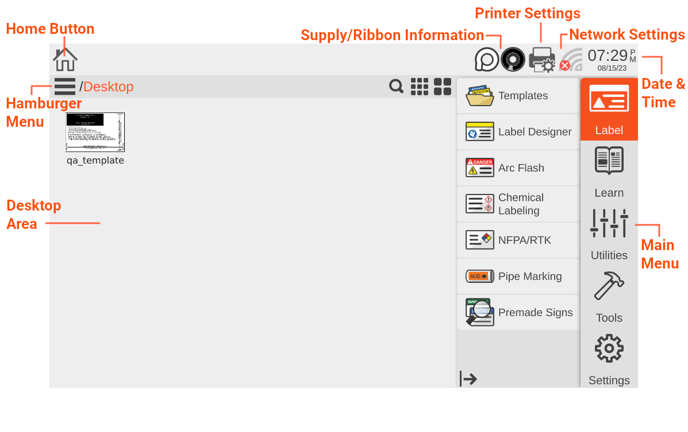
This menu includes options for creating and printing labels. For more information on how to use the label design software on your Toro Max, see the LabelForge PRO User Guide. The same software is also available for installation on a PC.
- Templates: Browse the collection of label templates on your Toro Max.
- Label Designer: Create new labels from scratch or modify existing label designs.
- Arc Flash: Create specialized electrical safety labels to meet NFPA 70E requirements.
- Chemical Labeling: Create GHS-style chemical container labels, using an editable database of chemical details. Labels can follow HazCom 2012 (United States) or GHS (United Nations) formats.
- NFPA/RTK: Create supplemental chemical labels with the NFPA 704 hazard rating system, using an editable database of chemical details.
- Pipe Marking: Quickly create pipe labels to match the common ANSI/ASME A13.1 standard, or the more specialized IIAR Bulletin No. 114 standard (for ammonia-based refrigeration systems).
- Premade Signs: Browse and search through our library of premade signs consisting of multiple different categories such as Fire Safety, First Aid, Machine Operation, PPE and many more for quick access to printing compliant labels.
Learn
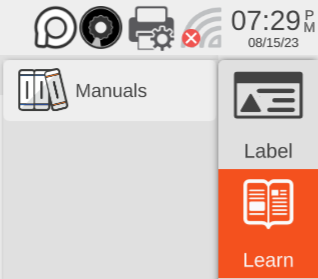
This menu includes ways for you to learn about your Toro Max printer.
- Manuals: Digital versions of the documentation.
Utilities
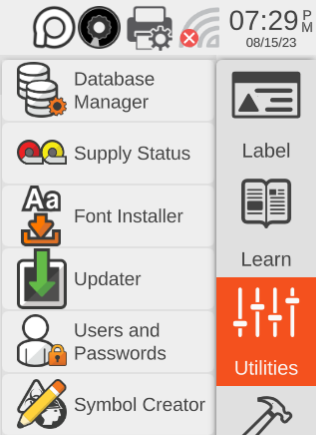
This menu is for maintaining and updating your Toro Max system.
- Database Manager: Create, copy, import, or export databases for use with the labeling modules.
- Supply Status: See which supplies are currently loaded, and how much of each is remaining. You can also access this utility by clicking on the small supply icons in the main toolbar, at the top of the screen.
- Font Installer: Add compatible fonts (.ttf) to be used within LabelForge Pro and the different modules that are available.
- Updater: View the current software version of your Toro Max, and easily check for an available update (if your Toro Max is connected to the Internet). Updates can also be installed from a USB storage device.
- Users and Passwords: Create Usernames and Passwords that prompt a user to sign into the printer.
- Symbol Creator: Upload image files to be converted into .svg files that can then be stored within the symbol library when using Label Designer.
Tools
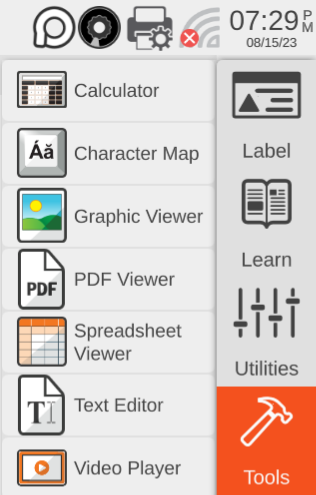
This menu offers direct access to specific applications on your Toro Max.
- Calculator: Easily perform basic numeric operations.
- Character Map: Browse and copy special characters for use in your labels and signs.
- Graphic Viewer: View image files (such as .JPG or .SVG) on your Toro Max.
- PDF Viewer: Read documents in the standard .pdf format.
- Spreadsheet Viewer: View and make basic edits to basic spreadsheet files.
- Text Editor: Read or write plain text files in the .txt format.
- Video Player: View videos from the printer using the following formats: .mp4, .wav, .mov, and .avi
Settings
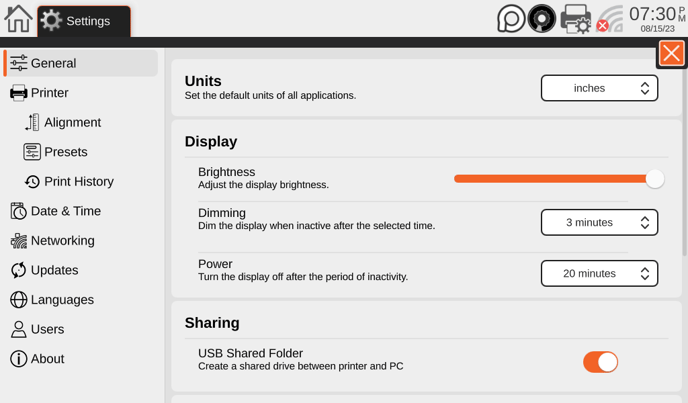
This menu is for your Toro Max's system settings. Tap on either the printer icon in the top right-hand corner of the display or the settings wheel on the bottom right-hand corner to access this menu.
- General: Change the default units from inches to mm, adjust display settings, and other options including setting up a shared folder for when the printer is connected to a PC via USB.
- Printer: Adjust page orientation, cutter settings, and heat settings for the printer.
- Alignment: Adjust the Horizontal and Vertical alignments as needed as well as more advanced feed options.
- Presets: Create Presets with various setting changes to easily swap between settings depending on the task at hand.
- Print History: View previous print jobs and reprint them if needed.
- Date & Time: Adjust Toro Max's internal clock and calendar. You can also access these settings by clicking on the time or date displayed in the main toolbar, at the top of the screen.
- Networking: View or change Toro Max's network settings for a wireless or Ethernet connection. You can also access these settings by clicking the network icon in the main toolbar, at the top of the screen.
- Updates: View the current software version of your Toro Max, and easily check for an available update (if your Toro Max is connected to the Internet). Updates can also be installed from a USB storage device.
- Languages: Change the display language as well as the keyboard layout as needed.
- Users: Create Usernames and Passwords that prompt a user to sign into the printer.
- About: View information about the printer including Serial Number, Firmware Versions, Available Storage, and more.
More Support Options
If you have any questions about using your DuraLabel Toro Max printer, get help from our world-class DuraLabel support team by calling 800-788-5572 or visiting DuraLabel.com. We're here to help with all your labeling needs!