

How to Set Up Wi-Fi
- Open the Wi-Fi controls by clicking on the wireless icon in the toolbar, or navigate to the Settings menu from the main screen and choose Networking.
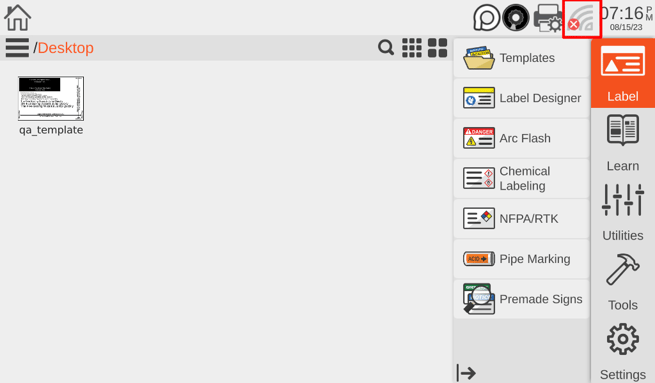
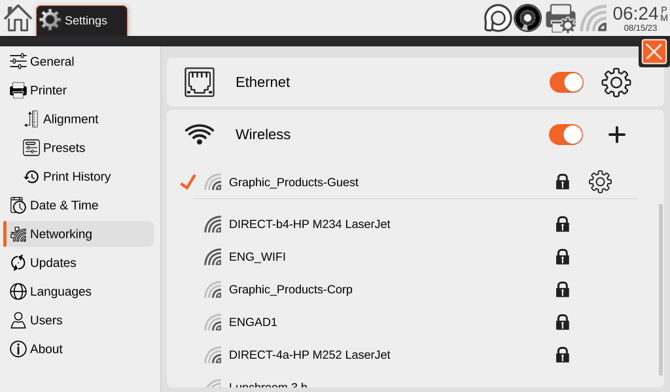
- Make sure the Wireless option is switched on (showing orange). A list of available wireless networks will appear. (If your Kodiak Max is already connected to a wireless network, there will be a checkmark next to the entry for that network.)
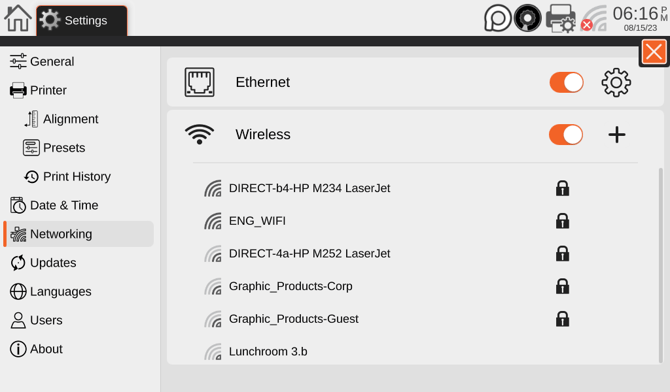
- Select your preferred wireless network. If the network is protected by a password, you will be prompted to enter it; then, click Connect.
To remove saved details about a network, click the gear icon for that network's entry in the list, and choose Forget Network.
Please reach out to us with any further comments or questions at:
DuraLabel Support Number: +1 (888) 7888-5572
DuraLabel Support: https://duralabel.com/support/
DuraLabel YouTube: https://www.youtube.com/@DuraLabelbyGP
DuraLabel Printers & Supplies: https://duralabel.com/printers-and-supplies/