
The LabelForge Pro software requires information about the label material, size, color and appropriate printer settings from the smart chip in the ribbon and tape in order to interface with the printer. Without access to this information, the software cannot display the appropriate canvas and background. In some instances, the printer driver may require elevated security permissions in order to communicate with the printer.
Troubleshooting:
- Set the driver as the default. This may help the software register the correct printer and supplies.
- Ensure that the driver security permissions are elevated for all users by navigating to Control Panel > Device and Printers > right click the DuraLabel driver > Printer Properties > Security at the top > check “Allow” under Print, Manage this printer, and Manage documents for all Groups and usernames including All Application Packages > Once you’ve checked Allow for all levels, hit Apply. The driver may freeze. If so, power cycle the printer to complete the changes.
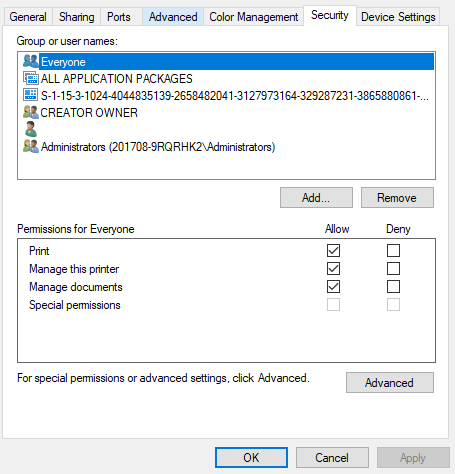
- Power cycle the printer to ensure that it is not stuck in error status.
- Close and then open the software in order to reestablish communication with the printer.
- Open and close the lid to ensure the printer is registering the lid closure. The lid must be closed in order for the software to detect the supplies. Press firmly on the lid to determine if there is a weak switch connection.
- Ensure that there are no print jobs currently stuck in the print queue.
- Unplug the USB cable from the back of the printer as well as the USB port on the PC to test for a loose connection.
- Try an additional USB port if available.
- Make sure that USB cable is plugged directly into PC and not plugged into a USB hub or docking station.
- If available, try an additional USB cable.
- If the error continues contact Tech Support or your Account Manager for further instructions.