
From PC
- If printing from the PC make sure that the drivers have already been installed, if not please follow this guide that also includes a link to download the most up to date version of the drivers.
- After confirming that the drivers have been installed, navigate to the Printing Prefences by clicking the start icon and typing Control Panel. Then select the devices and printers option and within the new window that shows the drivers right-click on the Bronco Max driver and select Printing Preferences.
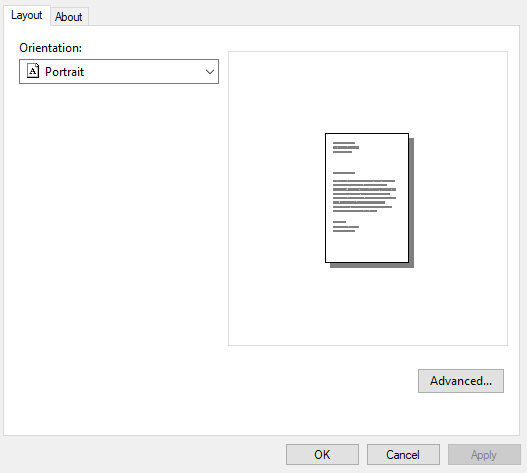
- In the new window that appears, make sure that the current tab selected along the top is Layout and then click the Advanced... button.
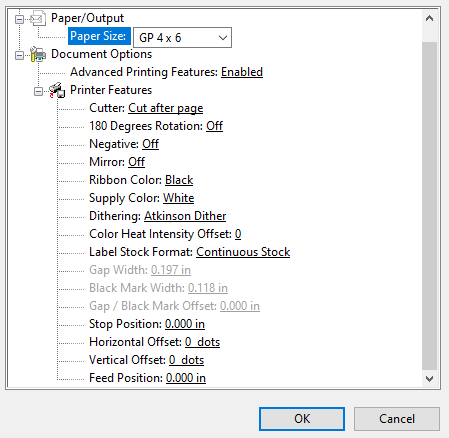
- Another window will appear, look for the Color Heat Intensity Offset and adjust the value positively or negatively depending on the needs.
- Once completed click OK, then Apply, and OK to save the settings.
- If any software was open to print labels from that will need to be closed and reopened for the changes to take effect.
More Support Options
If you have any questions about using your DuraLabel Bronco Max printer, get help from our world-class DuraLabel support team by calling 800-788-5572 or visiting DuraLabel.com. We're here to help with all your labeling needs!